CREATION PLUS
 Smart Plug vs Wake on LAN: Which Remote Boot Method Is Better?
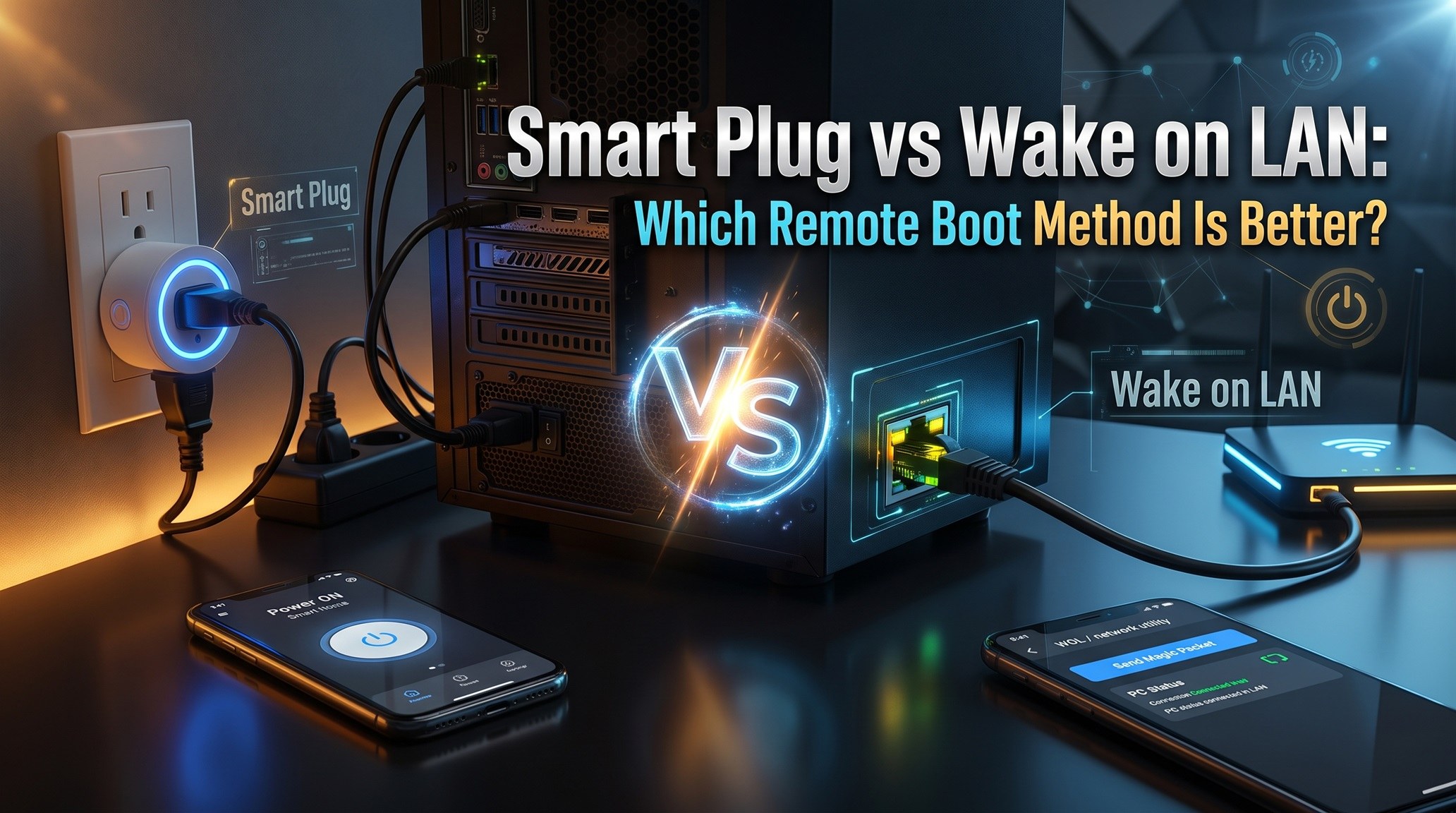
Deciding between a smart plug and Wake-on-LAN depends on your network setup and hardware needs. Here is how both remote boot methods compare.
When deciding between a smart plug vs Wake on LAN (WoL) to turn on a PC or home server remotely, the right choice depends on your technical comfort, network setup, and hardware reliability needs. Wake-on-LAN uses an internal network signal to wake a sleeping machine gently, while a smart plug forces a cold boot by cutting and restoring electrical power at the wall outlet. Both approaches achieve remote powering, but their setup requirements, wear-and-tear profiles, and failure points differ significantly.
Understanding the Core Technologies
Before choosing a setup, it helps to understand how each method physically instructs your computer to power up.
What Is Wake-on-LAN (WoL)?
Wake-on-LAN is an industry-standard networking protocol. As detailed in SuperOps' guide to Wake-on-LAN, WoL allows a computer in sleep, hibernation, or soft-off mode to transition to full power when its active Network Interface Card (NIC) detects a specially crafted data frame called a "Magic Packet." Because the NIC remains in a low-power listening state, the computer does not experience a total loss of power.
How Smart Plug Booting Works
A smart plug sits between the wall outlet and your PC's power supply unit (PSU). Rather than sending a network instruction to the motherboard, the plug simply cuts or delivers electrical current. For this method to turn on a computer, you must configure the motherboard BIOS to enable an option typically labeled "Restore on AC Power Loss" or "AC Power Loss Recovery." When the smart plug turns on, the motherboard senses incoming current and triggers a full startup sequence.
Smart Plug vs Wake on LAN: Direct Comparison
To help visualize the operational differences, the table below highlights how both solutions handle power states, remote access, and hardware management:
| Feature | Wake-on-LAN (WoL) | Smart Plug Method |
|---|---|---|
| Boot Mechanism | Network broadcast (Magic Packet) sent to NIC | Electrical power restoration via BIOS AC recovery |
| Startup Type | Wakes from sleep, hibernate, or soft-off | Always triggers a complete cold boot |
| Remote Access (WAN) | Complex; blocked by most consumer routers | Simple; managed via cloud smart home apps |
| Hardware Wear | Gentle; normal OS power state transitions | Higher; frequent cold boots from zero current |
| Frozen System Recovery | Ineffective if OS/NIC is totally unresponsive | Effective; can cut power to force a reset |
| UPS Compatibility | Fully compatible across all topologies | Complicated if UPS protects multiple devices |
Pros and Cons: Key Trade-Offs
Choosing between these two approaches involves trading configuration complexity for hardware convenience.
The Case for Wake-on-LAN
- Gentler on Hardware: WoL initiates standard software-level wakeups. As noted in documentation from Remio's WoL overview, waking a machine from sleep or soft-off states avoids the added physical stress and slower boot times associated with cold boots from zero power.
- Clean Shutdown Compatibility: If you shut down your PC through the operating system normally, WoL will still wake it without requiring you to toggle wall power.
- Energy Efficient: Only the network card consumes minor standby power while waiting for traffic.
However, WoL can be frustrating. Standard routers block network broadcasts from crossing subnets or reaching local devices from the public internet. Enabling "Wake-on-WAN" (WoW) requires sending packets to a public IP and configuring router port forwarding.
The Case for Smart Plugs
- Foolproof Remote Access: Most smart plugs connect directly to cloud services via Wi-Fi. You can switch your machine on from anywhere using your smartphone without adjusting network firewall settings.
- Hard Reset Capability: When a remote server or desktop freezes completely, WoL cannot help. A smart plug lets you cycle power to force a reboot.
- Broad Hardware Support: Almost all modern desktop motherboards feature AC recovery settings in their BIOS.
The primary annoyance with smart plugs is standard shutdown handling. As community discussions on the r/homelab community forum point out, if you run a standard OS shutdown, the PC powers off, but the smart plug remains in the "ON" state. To start the machine again later, you cannot simply press "turn on" in your app. You must switch the plug OFF, wait a few seconds, and then turn it back ON to trigger the AC power recovery.
Infrastructure Constraints: The UPS Problem
If your setup includes an Uninterruptible Power Supply (UPS) for battery backup, smart plugs introduce practical layout issues. A community analysis on the Level1Techs networking forum highlights that using a smart plug becomes complex or infeasible when a UPS powers multiple machines and network switches simultaneously. Placing a smart plug between a UPS and a wall outlet cuts power to every attached component, while placing individual smart plugs downstream between the UPS battery outlets and individual PCs adds unnecessary bulk and points of failure.
How to Configure Each Method
Follow these setup workflows depending on the route you choose.
Configuring Wake-on-LAN
- Enable WoL in BIOS/UEFI: Boot into your motherboard settings and turn on "Wake on LAN" or "Power On By PCI-E Device."
- Configure OS Network Adapter: In Windows Device Manager (or your OS network properties), open your Ethernet adapter properties. Under Power Management, check "Allow this device to wake the computer" and "Only allow a magic packet to wake the computer."
- Use Wired Ethernet: Always use a wired network cable for reliable packet reception, as motherboards frequently drop power to wireless adapters when shut down.
- Verify Packet Delivery: Use packet-monitoring software on your local network to verify that UDP Magic Packets reach your PC's MAC address before attempting remote connections.
Configuring a Smart Plug for PC Booting
- Enable AC Recovery in BIOS: Reboot your PC and open the BIOS menu. Look for the power management tab and set "Restore on AC Power Loss" (or "After Power Failure") to "Power On."
- Test Manual Interruption: While the PC is running, save your work, unplug the power cord from the wall, wait 10 seconds, and plug it back in. The PC should start immediately without pressing the physical chassis button.
- Insert the Smart Plug: Plug your PC into the smart switch and pair it with your home automation app.
Common Mistakes to Avoid
- Assuming WoL Works Wirelessly: Most motherboards cut power to Wi-Fi chips entirely during sleep or shutdown. Relying on wireless WoL leads to high failure rates.
- Placing Smart Plugs Upstream of Critical Infrastructure: Never put essential routing equipment on the same switch you intend to power-cycle for a frozen server.
- Ignoring Hard Drive Health: Forcing frequent hard power cuts via smart plugs while the operating system is actively writing data can corrupt file systems. Always perform a clean OS shutdown first whenever possible.
The Best Approach: A Hybrid Setup
You do not have to limit yourself to just one technique. For power users, the most resilient setup combines both methods. Use Wake-on-LAN as your daily driver for gentle, scheduled, or ad-hoc wakeups over your local network. Keep a smart plug as a hardware fail-safe to remotely cycle frozen systems or restart the PC if a power blip breaks the WoL listener state.
If you decide an external switch fits your workflow best, check out our in-depth guide on how to choose a smart plug to find models with reliable recovery states, or read our breakdown comparing a smart plug vs mechanical timer for simpler automation tasks.
Frequently asked questions
Can a smart plug turn on my computer after a normal software shutdown?
Yes, but not with a single tap. After a normal operating system shutdown, the smart plug is still delivering power, so turning it on in an app does nothing. You must first turn the smart plug off, wait several seconds, and then turn it back on to trigger the motherboard's AC power loss recovery setting.
Why does Wake-on-LAN fail to work outside my home network?
Wake-on-LAN uses local broadcast packets that cannot cross different network subnets. Consumer internet routers automatically block these broadcast packets arriving from the public internet for security. To wake a PC remotely over the internet, you must configure port forwarding, a VPN, or a local network relay device.
Does using a smart plug to start a PC cause hardware damage?
Starting a computer via a smart plug triggers a cold boot from complete zero power, which increases electrical stress on internal capacitors and drives over time compared to waking from sleep. Additionally, cutting power via a smart plug while the OS is actively running can lead to data loss or file corruption.
What BIOS setting must be enabled for a smart plug to boot a computer?
You must enable the setting typically named 'Restore on AC Power Loss', 'AC Back', or 'State After Power Failure' in your motherboard BIOS/UEFI, setting its value to 'Power On' or 'Always On'.