CREATION PLUS
 How to Set Up Meross Smart Plugs: Complete Step-by-Step Guide
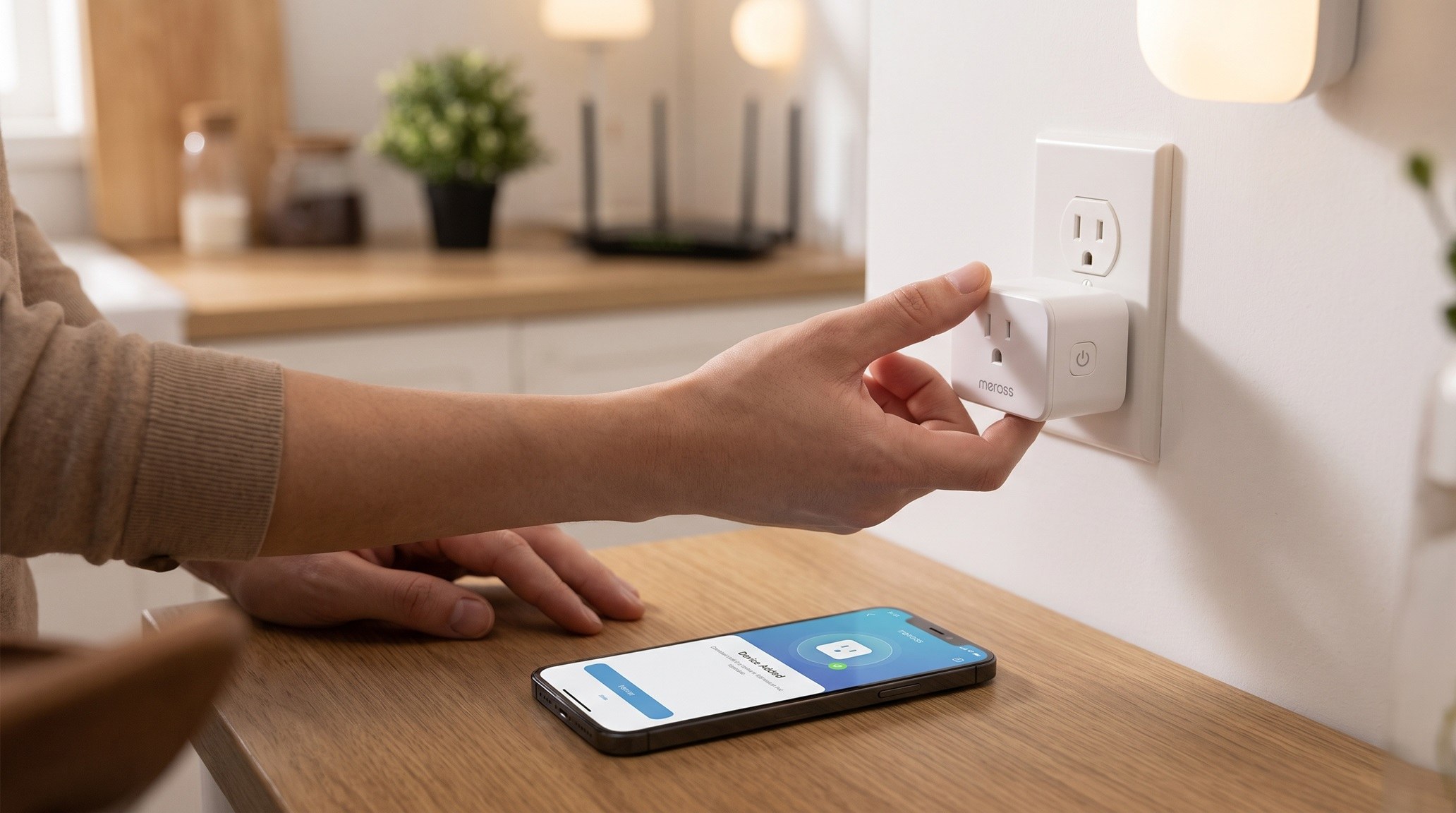
Setting up a Meross smart plug takes only a few minutes when your network is configured properly. Here is a clear, step-by-step walkthrough covering Wi-Fi pairing, Apple HomeKit, Alexa, and troubleshooting.
Learning how to set up meross smart plugs is straightforward once you know how to handle modern home Wi-Fi bands. Meross smart plugs let you automate lamps, fans, and small appliances directly from your phone. However, network configuration hiccups often leave users stuck on the pairing screen. This guide walks you through every step of installation, ecosystem linking, and fixing common setup errors.
Before You Begin: Pre-Setup Checklist
Before plugging in your device, take thirty seconds to check your phone settings and wireless network. Most connection failures happen because of mobile settings or router band mismatches.
- 2.4GHz Wi-Fi Band: Meross smart plugs operate exclusively on a 2.4GHz Wi-Fi frequency and do not support 5GHz networks. Ensure your smartphone is connected to your 2.4GHz network band during pairing.
- Disable Active VPNs: According to Meross official support guidance, active VPN profiles will prevent the app from discovering and handshaking with your new plug. Temporarily turn off any VPN on your mobile device.
- Enable Location and Bluetooth: Grant the Meross app location permissions and ensure Bluetooth is turned on so it can discover local hardware nearby.
- Verify Password Accuracy: Have your Wi-Fi password ready. Ensure your network name (SSID) is broadcasted and not hidden during the initial setup phase.
How to Set Up Meross Smart Plugs via the Meross App
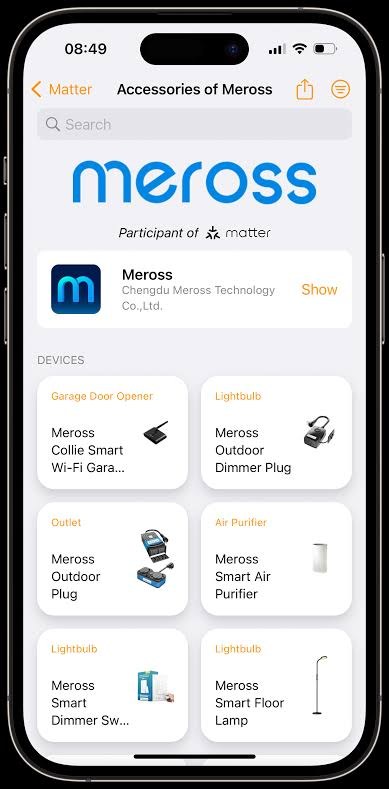
The standard installation method uses the official Meross app, available for iOS and Android. This works for standard Wi-Fi models and establishes basic cloud control.
- Plug in the Device: Insert your Meross smart plug into an electrical outlet close to your wireless router for initial pairing. You can move it to its final destination later.
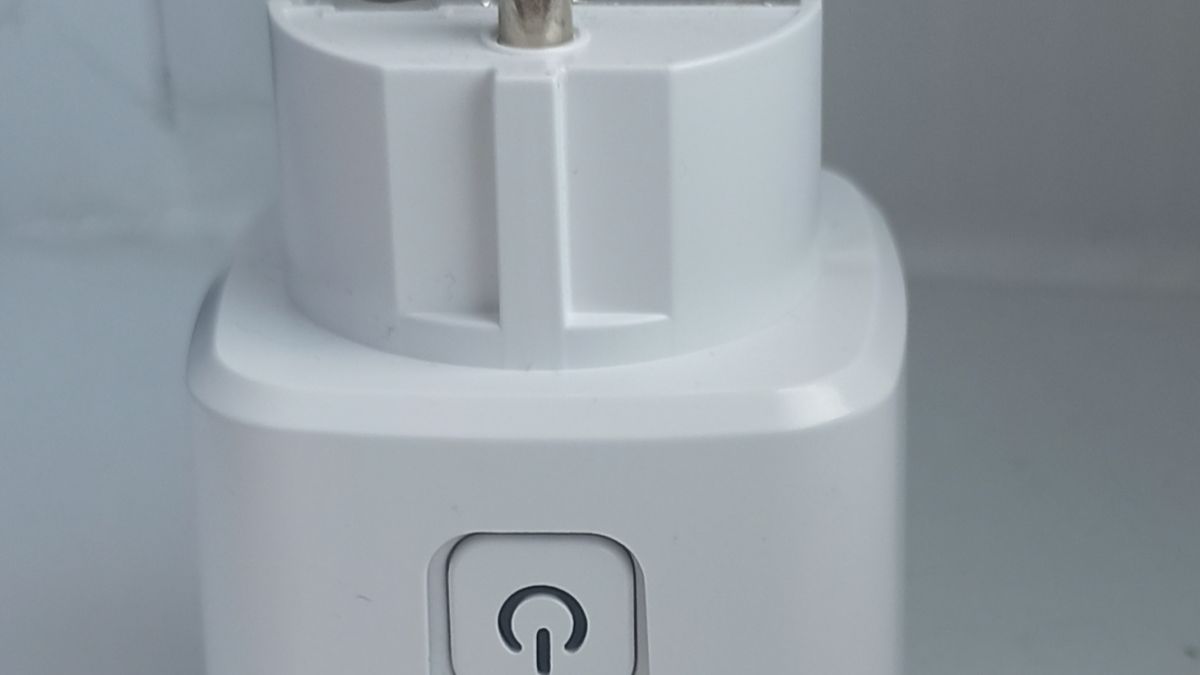
- Check the LED Indicator: Wait for the indicator light to flash amber and green. If it does not, press and hold the power button for 5 seconds to initiate pairing mode.
- Open the App: Launch the Meross app, create an account or sign in, and tap the + icon in the top right corner to add a device.
- Select Your Model: Choose "Smart Plug" from the category list and select your specific model variant.
- Connect to the Plug: Follow the on-screen prompts. For Android or standard Wi-Fi iOS setups, you may be prompted to connect directly to the plug's temporary Wi-Fi network.
- Assign Wi-Fi Details: Select your home 2.4GHz Wi-Fi network from the list, enter your password, and give your plug a recognizable name.
Apple HomeKit and Matter Setup Instructions
Many Meross models, such as HomeKit-enabled variants or newer units like the MSS315 featuring Matter support, allow native onboarding without relying entirely on a cloud account. If you are comparing platforms, understanding smart device architecture helps; see our guide on how to choose a smart plug to identify the protocols your home needs.
Setting Up via Apple HomeKit
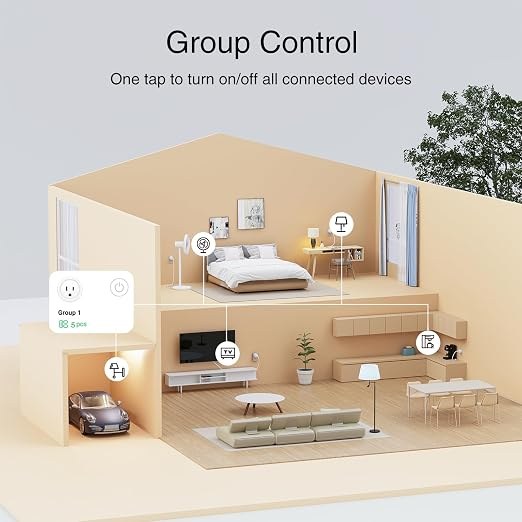
If your plug includes an Apple HomeKit code printed on the side or inside the box, you can set it up directly through the Apple Home app:
- Open the Apple Home app on your iPhone or iPad.
- Tap the + button and choose Add Accessory.
- Scan the HomeKit setup QR code located on the plug casing.
- Assign the plug to a specific room and assign it a clear name for Siri commands.
- Tip: Once added to Apple Home, open the Meross app to bind the plug. This ensures you can receive future firmware updates.
Setting Up Matter-Enabled Meross Plugs
Newer hardware supporting the Matter standard can pair directly with any compatible Matter controller (Apple Home, Google Home, Amazon Alexa, or SmartThings). Scan the Matter QR code using your chosen smart home platform app while your phone is on the 2.4GHz network. The controller will securely commission the plug into your smart home fabric automatically.
Comparing Meross Setup Paths
Depending on your smart home ecosystem, you can choose how your plug connects and communicates:
| Setup Method | Required Network | Primary Control App | Key Benefit |
|---|---|---|---|
| Standard Meross App | 2.4GHz Wi-Fi | Meross App (iOS/Android) | Universal compatibility; enables cloud scheduling and firmware updates. |
| Apple HomeKit | 2.4GHz Wi-Fi | Apple Home / Siri | Fast local network control; seamless Apple ecosystem automation. |
| Matter Integration | 2.4GHz Wi-Fi (with Matter Hub) | Any Matter Controller | Cross-platform interoperability across multiple ecosystems simultaneously. |
How to Connect Meross to Alexa and Google Home
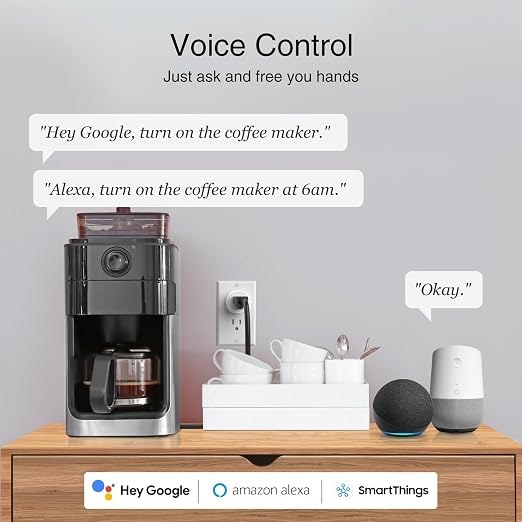
If you set up your plug through the Meross app, linking voice control takes just a couple of minutes.
Amazon Alexa Integration
- Open the Amazon Alexa app.
- Navigate to More > Skills & Games and search for "Meross".
- Tap Enable to Use and sign in with your Meross account credentials.
- Run device discovery to import your plug into Alexa groups and routines.
Google Assistant Integration
- Open the Google Home app and tap the + icon to set up a device.
- Select Works with Google.
- Search for "Meross", log in to your account, and authorize access.
- Assign the newly imported plug to its designated room.
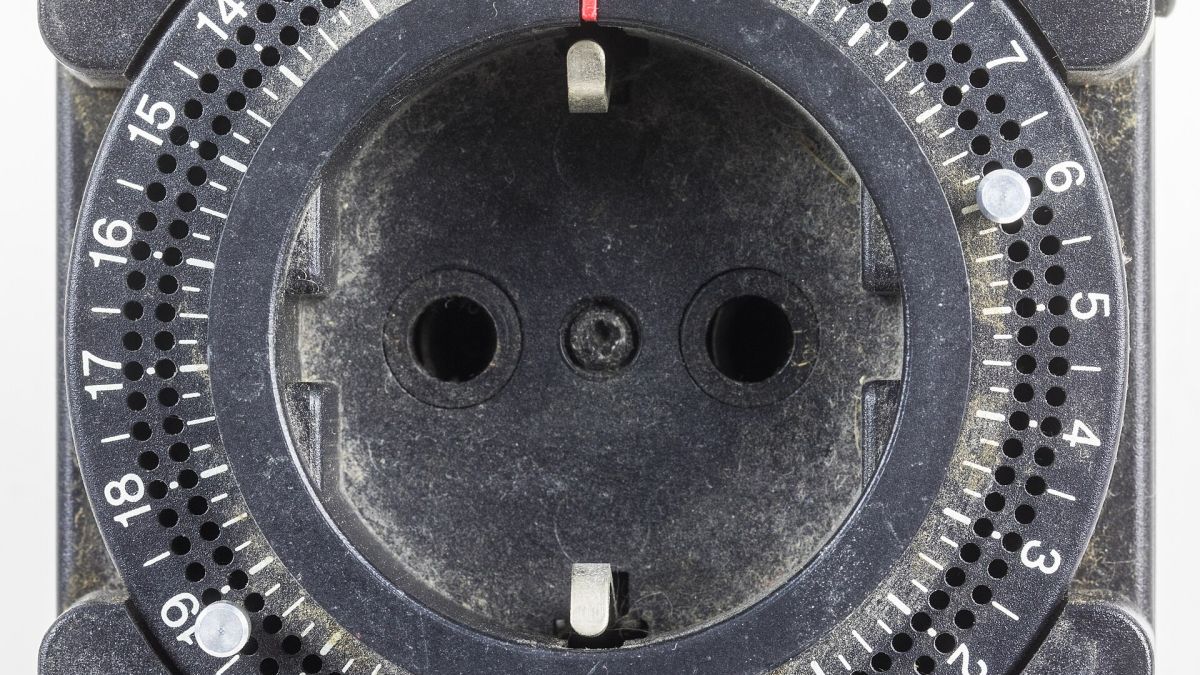
If you are deciding between automated smart switches and traditional approaches for everyday appliances, reviewing a smart plug vs mechanical timer comparison can help you determine where connected plugs provide the greatest convenience.
Troubleshooting Common Meross Setup Issues
If pairing stalls or fails, these proven troubleshooting steps resolve the vast majority of installation roadblocks.
1. Dual-Band Router Conflicts
Most modern mesh routers combine 2.4GHz and 5GHz bands under a single network name. Because Meross plugs only operate on 2.4GHz, smartphones connected to the 5GHz band may fail to transfer configuration credentials.
Solution: Log in to your router settings and temporarily disable the 5GHz band during setup. Alternatively, step away from your router until your phone drops to the longer-range 2.4GHz band, then run the setup process again.
2. QR Code Fails to Scan
If your camera cannot focus on the small HomeKit or Matter QR code, tap "More options..." or "I Don't Have a Code or Cannot Scan" in the setup app. You can then manually type the setup code printed alongside the matrix code on the hardware label.
3. The Setup Process Freezes or Times Out
If the app stalls on "Connecting to device," reset the hardware completely. As detailed in the RepairSpotter smart plug reset guide, press and hold the power button for 5 seconds until the LED flashes amber and green. This clears lingering connection caches so you can retry the pairing sequence from scratch.
4. Moving the Plug to a New Wi-Fi Network
Meross plugs do not have an in-app "change network" toggle. If you change your router or Wi-Fi password, you must perform a factory reset (hold the button for 5 seconds) and run the standard setup flow again to input the new network credentials.
Summary and Next Steps
Setting up your Meross smart plug requires an active 2.4GHz Wi-Fi band, disabled VPNs, and a quick press of the pairing button. Whether you use the native Meross app, Apple HomeKit, or Matter, the process takes only a couple of minutes once your network is configured properly.
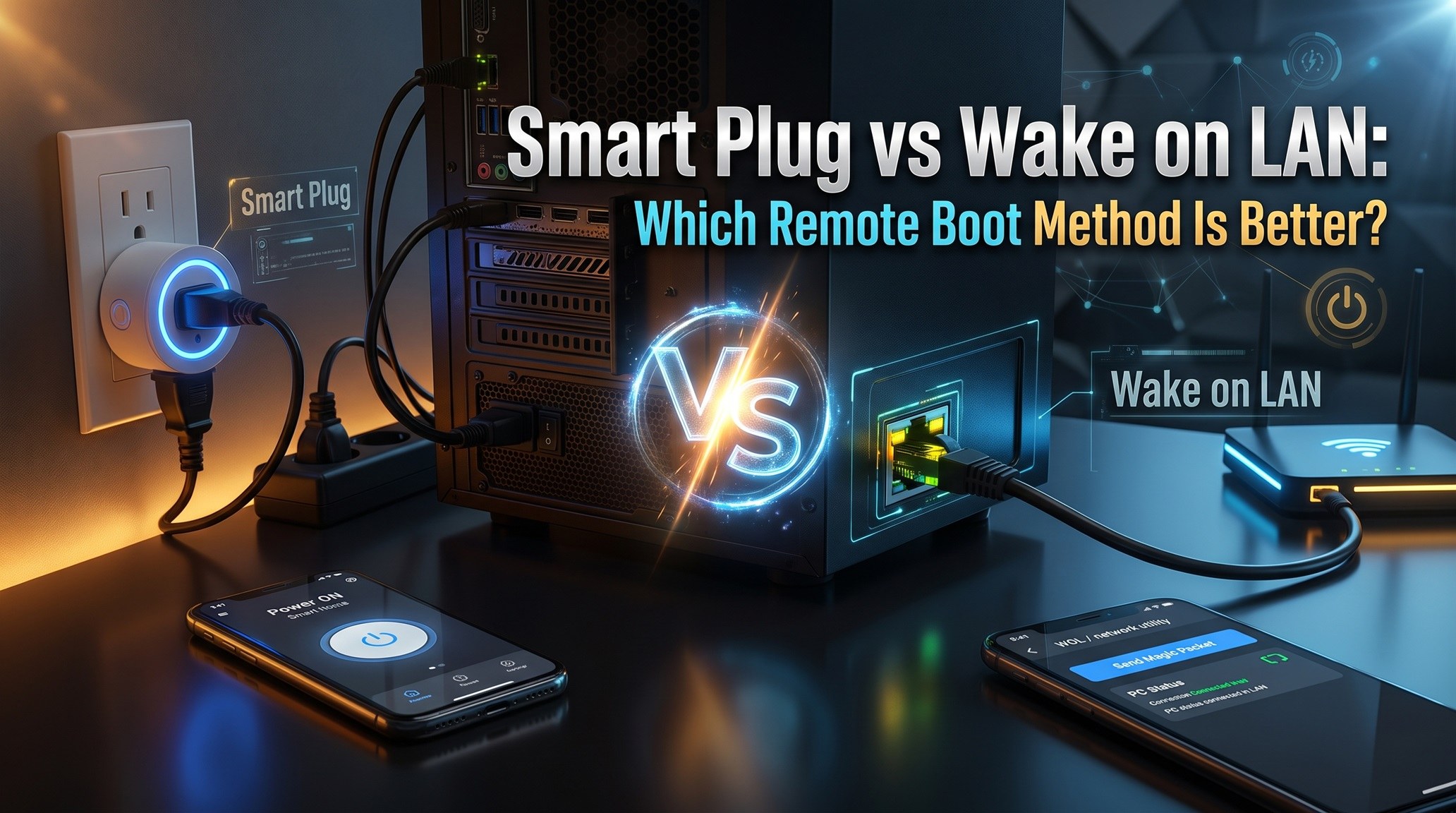
For specialized use cases—such as remotely starting workstations or office setups—explore our guide on smart plug vs Wake on LAN to see which automated power control method best suits your environment.
Frequently asked questions
Why won't my Meross smart plug connect to my Wi-Fi?
Meross smart plugs only support 2.4GHz Wi-Fi networks. Setup typically fails if your smartphone is connected to a 5GHz band, if a VPN is enabled on your phone, or if the plug is too far from your wireless router during initial pairing.
How do I factory reset a Meross smart plug?
Press and hold the physical power button on the plug for 5 seconds until the LED status indicator flashes amber and green. This clears existing network credentials and restores pairing mode.
How do I connect my Meross plug to a new Wi-Fi network?
You must perform a factory reset by holding the power button for 5 seconds. Once the LED flashes amber and green, open the Meross or Home app and complete the setup process with your new Wi-Fi credentials.
Do Meross smart plugs support Apple HomeKit and Matter?
Certain Meross models feature dedicated Apple HomeKit support, while newer versions (such as the MSS315) include Matter compatibility, allowing direct setup through Apple Home, Google Home, Alexa, or SmartThings.